
How to Use Coronium Proxies with Clousd Cloud Phones
Clousd runs cloud Android phones on real ARM servers. Each phone can run on its own proxy. This guide shows how to put a dedicated Coronium 4G/5G mobile proxy behind a Clousd phone, set up IP changes from the phone, and give every phone its own line.
Published 27 October 2026. Written with the Clousd team.
What you need
- A Coronium mobile proxy line. Buy one at dashboard.coronium.io under Add New Proxies.
- A Clousd account with at least one phone.
- One Coronium line for each phone you want on its own IP.
Part 1: Get your details from the Coronium dashboard
Every Coronium line is dedicated: one physical 4G/5G device with its own SIM card, rented to one buyer. Nobody else sends traffic through it while it is yours. Everything Clousd needs is on the proxy card.
Host, port, login and password
Log in to dashboard.coronium.io and open Your Proxies. In Cards view each proxy card shows:
- Connection IP: the host.
- HTTP Port and SOCKS5 Port: two ports on the same host, one per protocol.
- Username and Password: the login for both ports.
Click a value to copy it. In List view the Connection column copies the whole endpoint with the login included, in the format picked in the toolbar (for example IP:Port:User:Pass).
Formats Clousd accepts
host:port:user:passsocks5://user:pass@host:porthttp://user:pass@host:portWith the colon form, use the SOCKS5 Port for SOCKS5 and the HTTP Port for HTTP. Clousd works out which protocol answers when you press Check.
The IP-change link
Each line has its own link that changes the IP when it is opened. In Cards view it is under IP Rotation as Reset Link, with a Copy to Clipboard button. In List view use the Rotate API link button in the Actions column.
This URL goes into the Rotation link field in Clousd (step 3 below). Keep it private: anyone who has it can change the IP of your line.
Part 2: Set up the proxy in Clousd
1Create a Clousd account and start a phone
Create an account at clousd.com/signup and start a phone. Clousd offers a 30-minute trial phone, which is enough to run this guide end to end.
2Open Proxy settings
Open the phone and press Proxy settings. This opens the Network page.
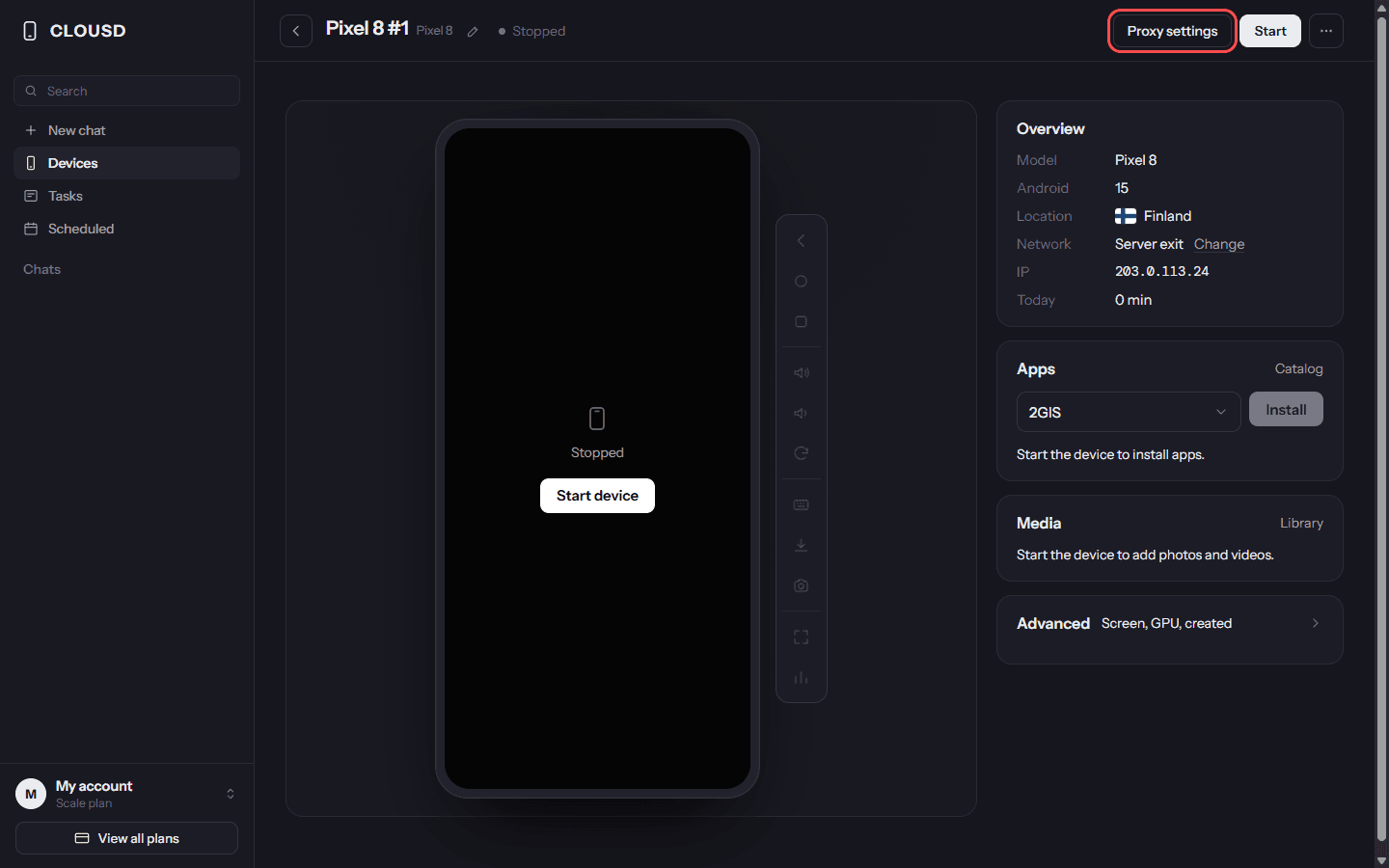
The phone page. Proxy settings opens the Network page. 3Add the Coronium proxy
Press Add proxy and paste your Coronium endpoint in any of these forms:
host:port:user:pass,user:pass@host:port, or a fullsocks5://orhttp://URL. Use the SOCKS5 port with SOCKS5 and the HTTP port with HTTP. Set IP type to Mobile IP, then paste the Coronium Reset Link into the Rotation link field, so Clousd can ask for a new IP.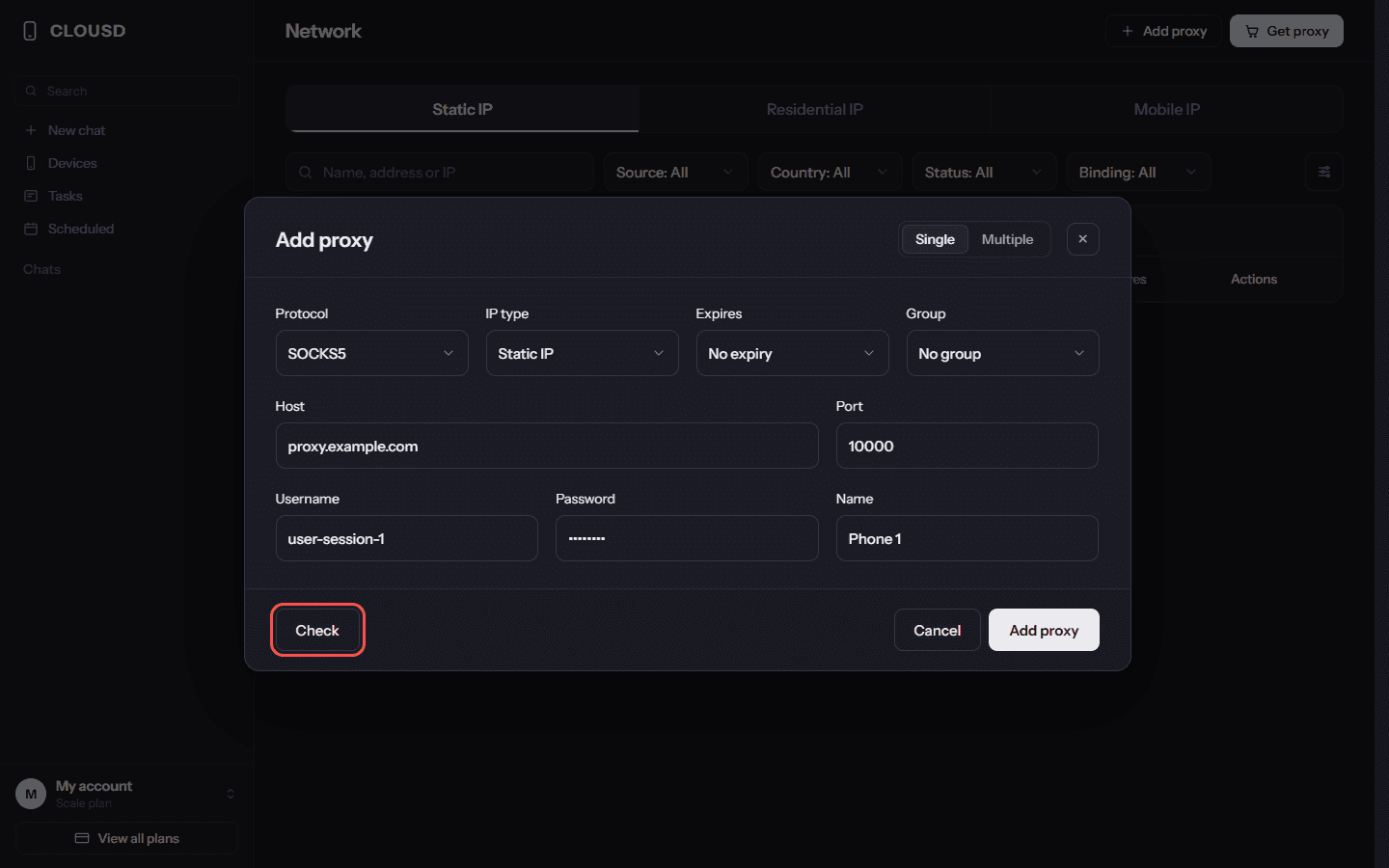
The Add proxy form. Fill it in by hand or paste the whole endpoint. 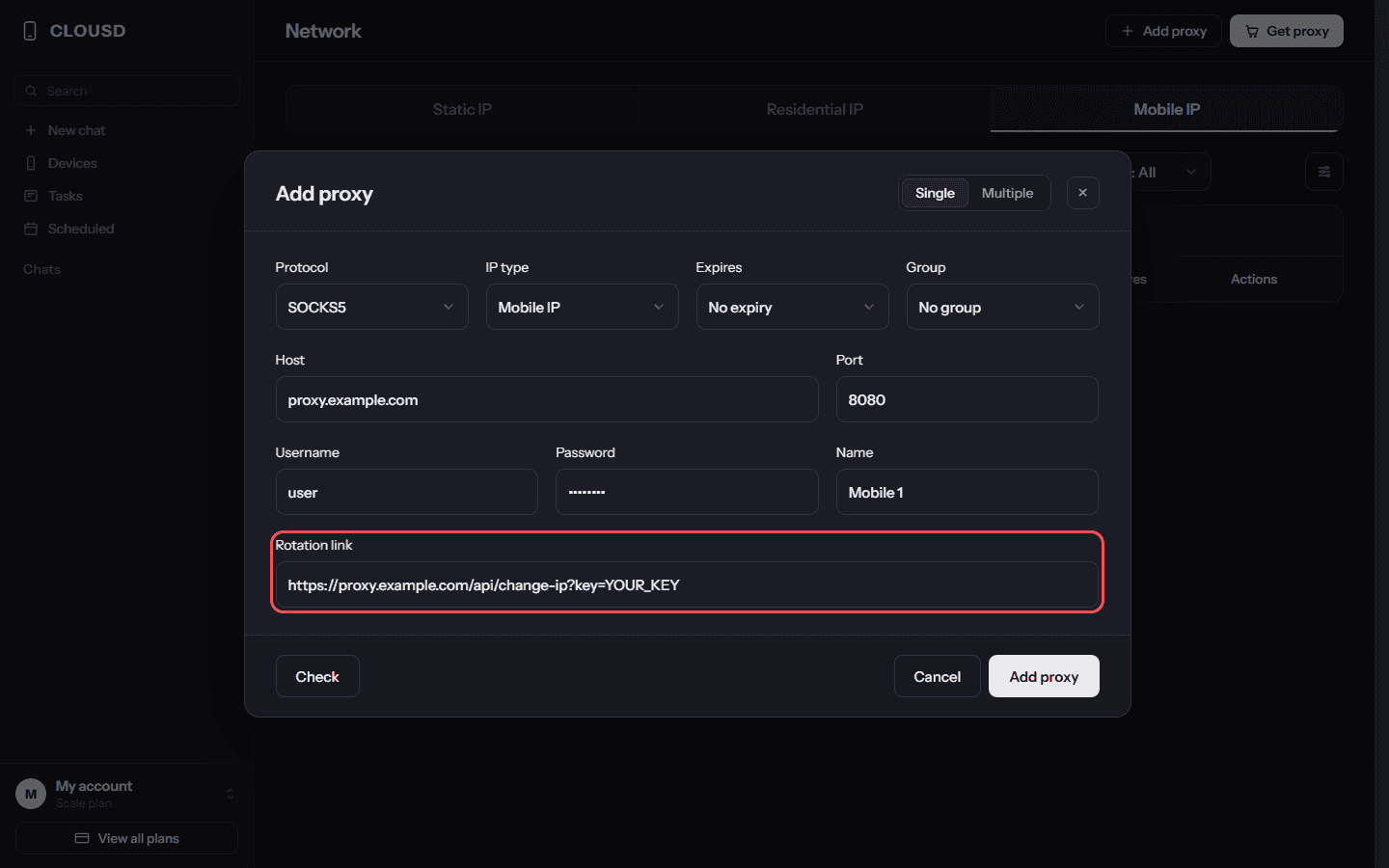
Rotation link: paste the Coronium Reset Link here. 4Press Check
Press Check. Clousd works out the protocol (SOCKS5 or HTTP) by itself and shows the exit IP, country and ISP. With a Coronium line the ISP is the mobile carrier of that SIM.
5Press Use and pick the phones
Press Use next to the proxy and tick the phones that should go through it. All of the phone's traffic goes through the proxy, apps included. If the proxy stops answering, the phone goes offline instead of using the server's own address.
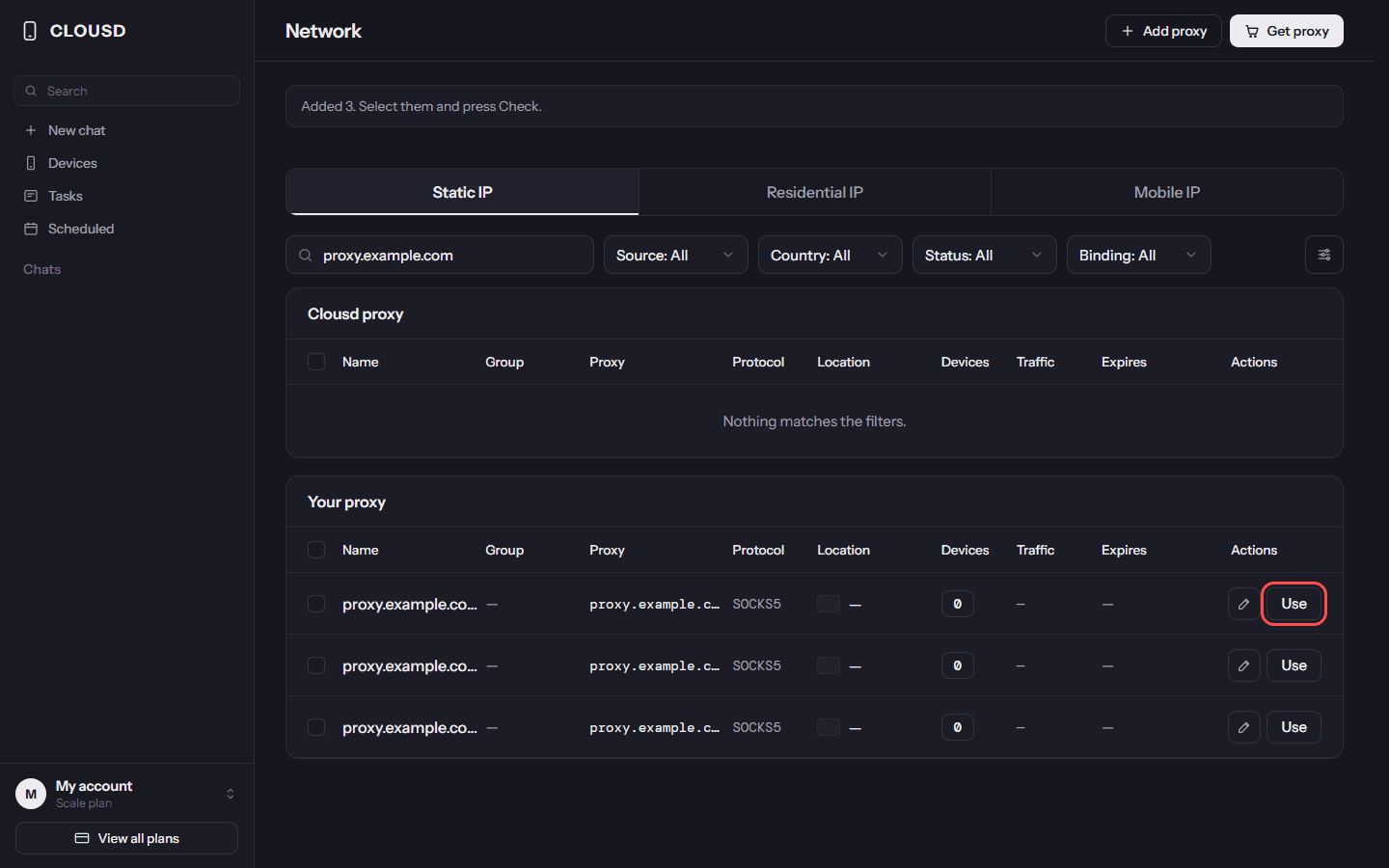
The proxy list. Press Use next to the proxy. 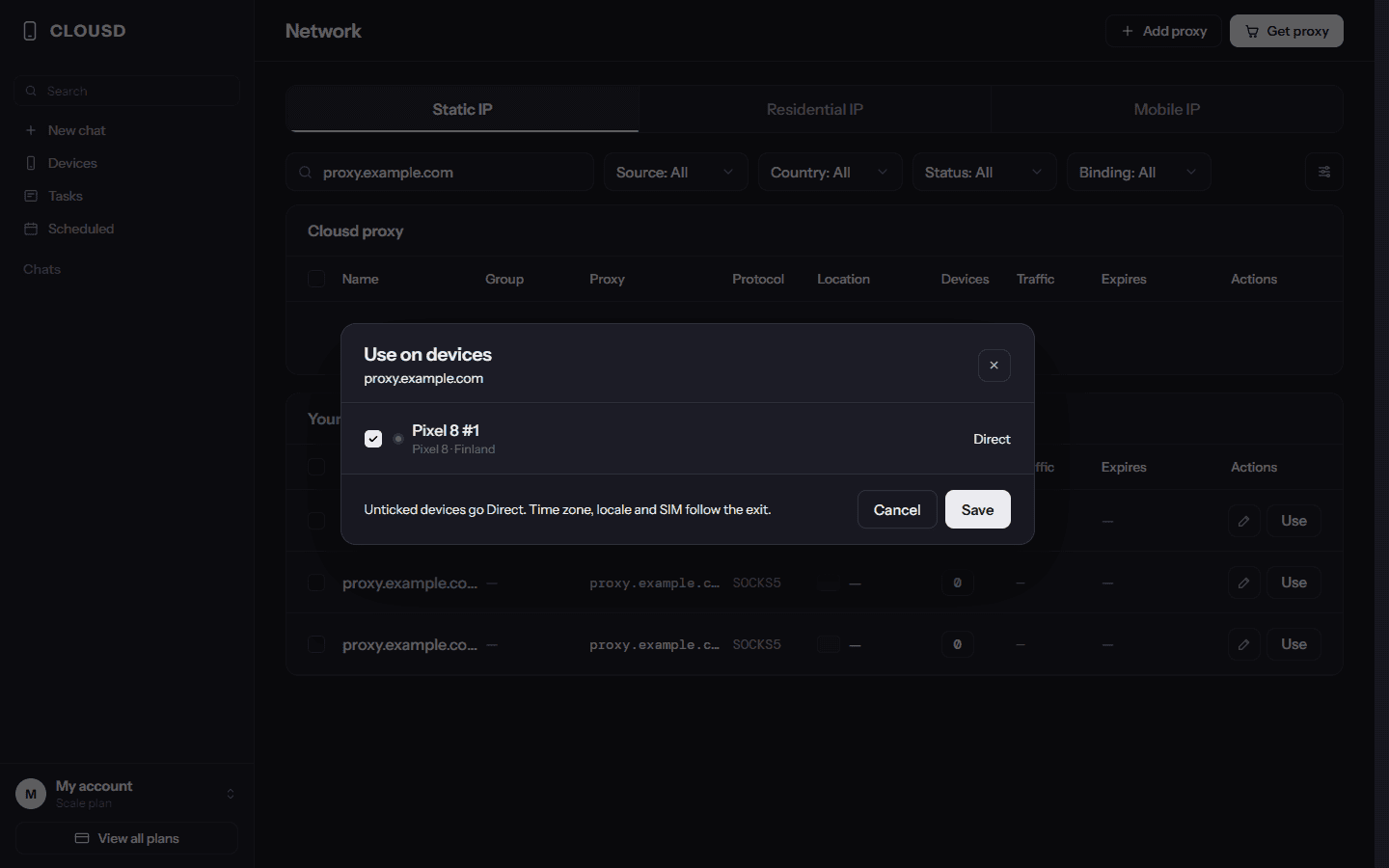
Tick the phones that should go through this proxy. 6Time zone, language and mobile data follow the proxy
The phone's time zone and language follow the country of the exit IP. With a mobile proxy the phone uses mobile data instead of Wi-Fi, which matches what an app expects from a real phone on a carrier network.
7Change the IP with New IP
If you added the Reset Link, the New IP button on the phone (or Change IP on the Network page) asks Coronium for a new address and the phone picks it up without a restart. The modem reconnects to the carrier, so give it a short moment before the new IP shows.
8Many phones: one Coronium line per phone
Open Add proxy, switch to Multiple and paste several Coronium lines, one per line. Then press One per phone: every phone without a proxy gets its own, in phone order. Keep it to one Coronium line per phone. Each line is its own modem, so each phone gets its own IP and its own rotation.
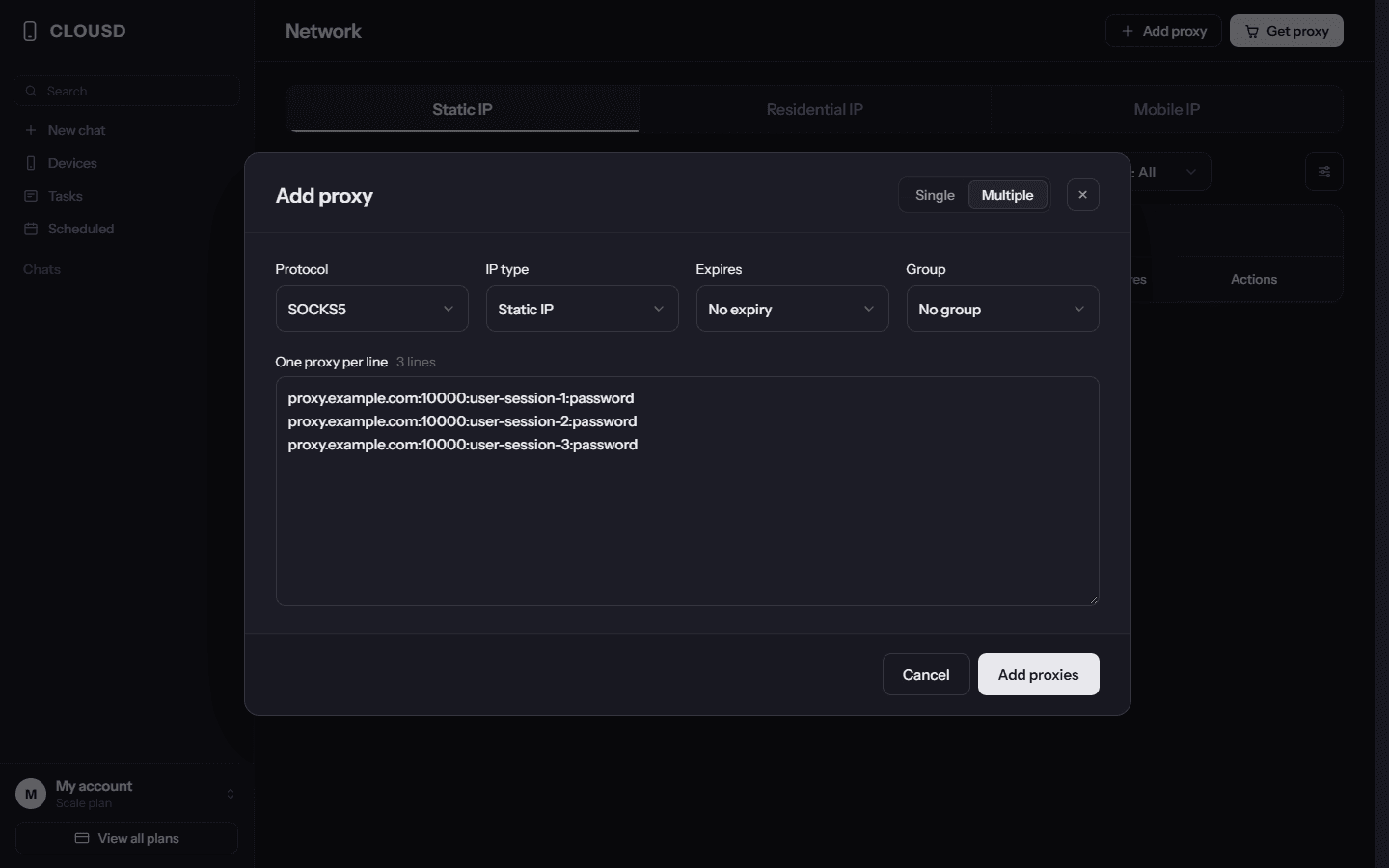
Multiple: paste several Coronium lines, one per line. 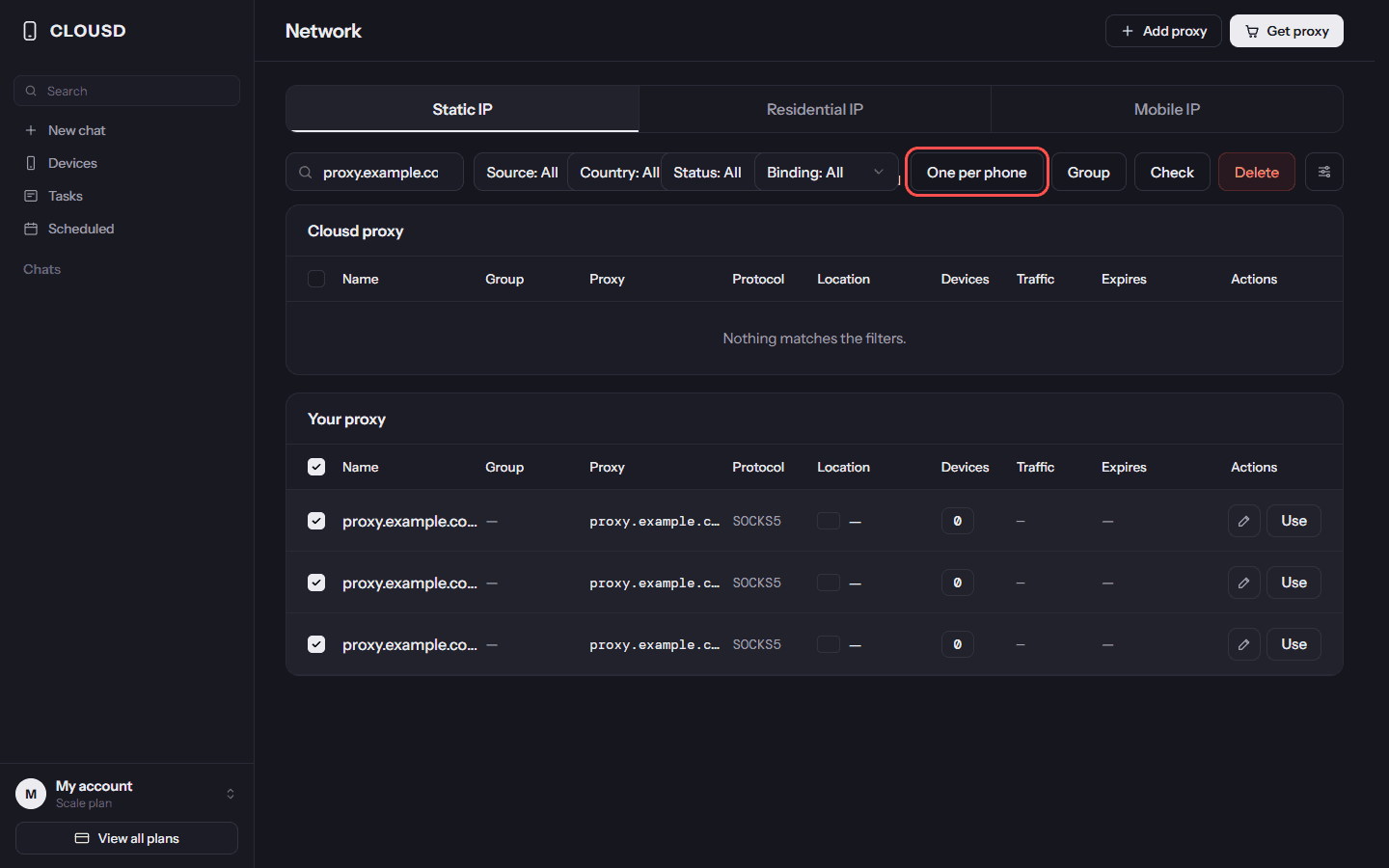
One per phone: every phone without a proxy gets its own. 9Or do it over the API
The same works without the dashboard: the Clousd API can add proxies and set a phone's proxy.
Screenshots by Clousd. The proxy details in them are placeholders.
Questions
Should I use HTTP or SOCKS5 with Clousd?
Both work. Every Coronium line has an HTTP port and a SOCKS5 port on the same host with the same username and password. Paste the port that matches the protocol, or paste a full socks5:// or http:// URL. Clousd detects the protocol when you press Check.
Where do I find the Coronium rotation link?
In dashboard.coronium.io, open Your Proxies. In Cards view, the IP Rotation block on each proxy card has a Reset Link with Copy to Clipboard. In List view, use the Rotate API link button in the Actions column. Paste that URL into the Rotation link field in Clousd.
Can several Clousd phones share one Coronium line?
It works technically, but all of those phones then share one IP, and a New IP on one phone changes the IP for all of them. Use one Coronium line per phone; the One per phone button in Clousd assigns them in phone order.
Does the phone need a restart after an IP change?
No. Clousd calls the Coronium rotation link, the modem reconnects to the carrier and the phone picks up the new address without a restart.
What is a dedicated Coronium line?
One physical 4G/5G device with its own SIM card, rented to one buyer at a time. Nobody else sends traffic through it while it is yours.
One dedicated mobile line per phone
Pick a country and carrier, pay, and the proxy card with host, ports, login and Reset Link is in your dashboard.
Also see our GeeLark and DuoPlus cloud phone guides, or browse mobile proxies.